Choosing between QuickBooks Desktop cloud hosting vs local server setups is not just a question of where your files live. It is also a decision about how staff connect, which applications are supported, who manages maintenance, and how your firm keeps working when something goes wrong.
For accounting firms, the right approach depends on the software in use, the way people work during busy periods, and the IT resources available to manage the environment. Start by comparing the access models, then confirm compatibility and responsibilities before moving any live workflow.
Know the difference between the access models
“Cloud” can mean different things in practice. Clarify what a provider or IT team means before comparing options.
- Local server with remote desktop: The applications and data remain on a server at your office. Staff connect remotely to a desktop session on that server. The office server, network, internet connection, and remote-access setup all remain important to availability.
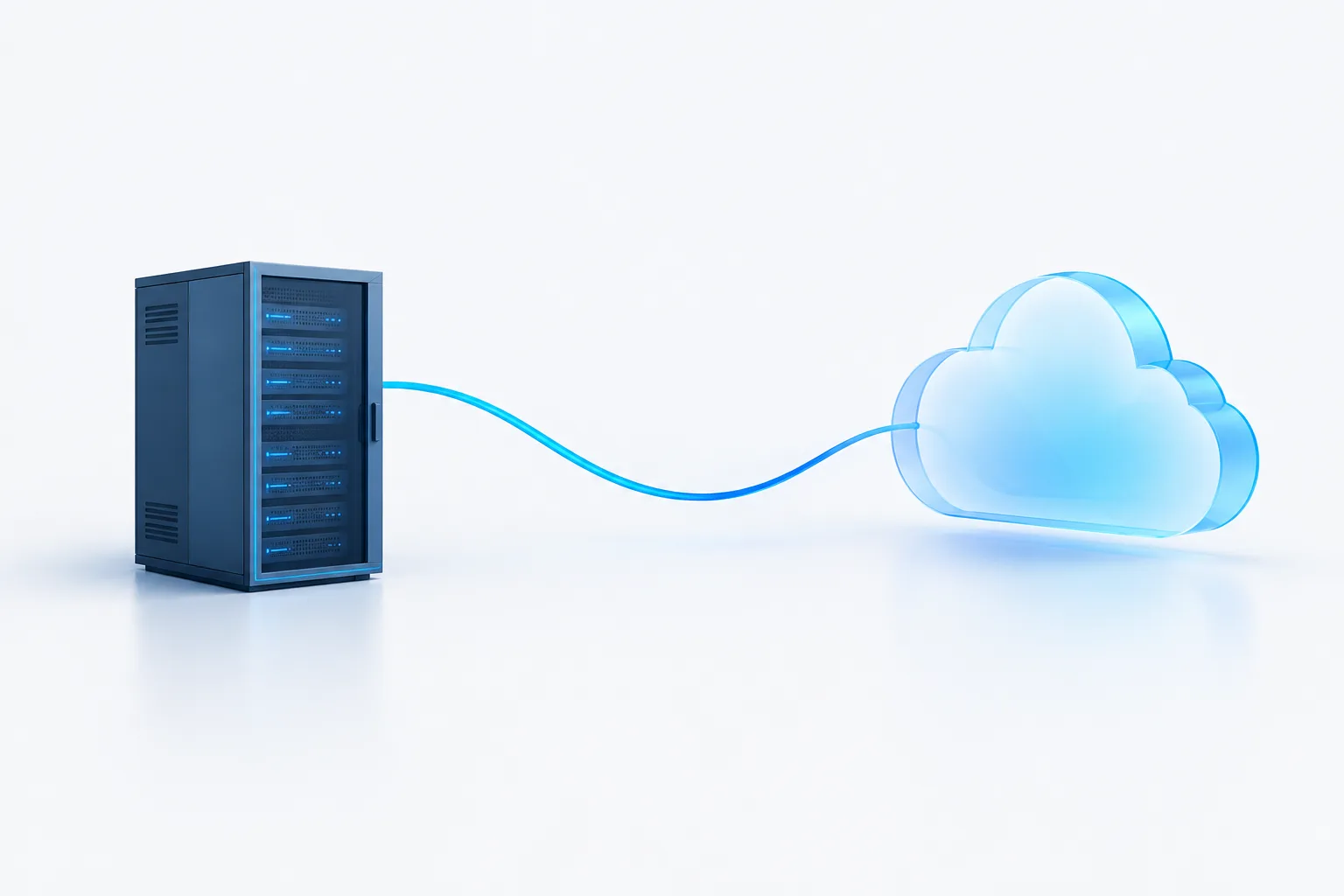
- Hosted desktop environment: Applications and data run in an environment managed in a data center or cloud platform. Staff connect to their hosted desktop over the internet. Ask who operates the environment and what is included in the service.
- Direct file access: Staff try to open a company file across a network connection, such as through a VPN. This is different from remotely controlling a desktop session. Before using this method, confirm that the software vendor supports the exact configuration and understand its performance and support implications.
Remote desktop and hosted desktop approaches can feel similar to staff because both may present a familiar desktop. The operational difference is where the system runs and who is responsible for maintaining it. For background on setting up remote work, see remote access options for accounting teams.
When a local server may fit
A local server may be a reasonable fit when your firm already has the IT capacity to maintain it, staff primarily work from the office, and the software vendors support your server and remote-access configuration. You retain direct oversight of the hardware and can coordinate system changes around your own workflow.
That control comes with responsibilities. Your firm must plan for hardware maintenance, updates, access security, backups, recovery, and the office’s internet and power dependencies. Remote access also depends on the server and network being available. If the office server or connection is unavailable, staff may not be able to reach the applications they need.
Ask how the server is monitored and maintained, who handles urgent issues, and how recovery would work if the server or office became unavailable. A local system is not automatically simpler or less expensive once administration, replacement planning, backup, and continuity are considered.
When cloud hosting may fit
Cloud hosting can make sense when staff need to use desktop applications from different locations, the firm wants someone else to operate parts of the hosting environment, or the office does not want its daily workflow tied to a server on-site. It can also provide a consistent work environment for remote staff, depending on how the service is configured.
Hosting does not remove the need for firm oversight. Your team still needs to manage user access, decide what data can be used in the environment, coordinate software updates, and understand the provider’s security and continuity practices. Internet access is central to reaching a hosted desktop, and a provider outage can interrupt access.
Do not assume that every desktop tax application will work in every hosted environment. Check directly with each software vendor and confirm support for the specific operating system, software version, peripherals, licensing terms, update process, and support arrangement. Also test the workflow your staff actually use, including printing, document handling, and multi-user work, before moving production work.
Zevonix lists QuickBooks, Sage, and tax software expertise, along with cloud solutions powered by AWS, Azure, and Google Cloud. Its services include remote and onsite support, with priority response during tax season. If you are evaluating a hosted setup, learn what to consider with QuickBooks hosting support.
Compare the practical tradeoffs
Remote work and connectivity
Consider where staff work and what happens if their internet connection is slow or unavailable. With a local server, remote staff depend on a reliable connection to the office environment. With hosted desktops, users depend on internet access to reach the provider’s environment. Neither arrangement makes connectivity irrelevant.
Software compatibility and licensing
Make a list of every application that supports the workflow, not just QuickBooks Desktop. Verify each product’s supported environment, version, licensing, peripherals, and vendor support. Ask who will coordinate updates and what happens if a vendor changes its requirements. Do not move a tax application based only on another product’s hosting experience.
Security and responsibility
Ask how access is controlled, whether multi-factor authentication is available, how data is protected in transit and at rest, and how activity is monitored. Establish who manages user accounts, patches, backups, incident communication, and access when an employee leaves. The IRS publications Safeguarding Taxpayer Data and Creating a Written Information Security Plan for Your Tax & Accounting Practice provide guidance for tax and accounting practices to consider when managing information security and service providers.
Using a hosting provider does not mean the firm can stop overseeing how client information is handled. Document the provider’s responsibilities alongside your own procedures, and review how the arrangement fits into your written security plan. For more on firm-side safeguards, see accounting firm data security practices.
Backups, recovery, and exit planning
Ask who owns backup configuration, how often backups run, how restoration is tested, and how quickly staff can regain access after an outage. Confirm whether backups are separate from the environment they protect and who is responsible for initiating recovery.
Plan for the end of the relationship, too. Find out how your firm can export its data in a usable format, what assistance is available during a transition, and how access and data are handled when the service ends. For an on-site server, define how the firm would restore systems if local hardware failed. For either model, write down the steps staff should follow during an interruption.
Total operating effort and cost
Compare more than a hosting fee or server purchase. Include administration, support, hardware replacement, connectivity, backup and recovery, licensing, and the time needed to manage users and updates. Account for seasonal staffing and changes in demand, and ask whether the setup can support the work patterns your firm expects during filing periods.
A decision checklist for your firm
- Which applications and versions must staff use, and have the vendors confirmed compatibility and licensing?
- Do staff need access from home, multiple offices, or temporary work locations?
- Who will maintain the environment, respond to problems, and coordinate updates?
- How will access, authentication, backups, restoration, and incident communication be managed?
- What workarounds are available if the office server, internet connection, or hosting provider is unavailable?
- How will your firm retrieve its data and move to another setup if its needs change?
- How does the full operating effort compare with your firm’s IT capacity and budget?
Frequently asked questions
Should an accounting firm host QuickBooks Desktop in the cloud or use a local server?
Choose based on software support, remote-work needs, available IT capacity, security responsibilities, and continuity planning. There is no single setup that fits every firm.
Can staff safely access QuickBooks Desktop remotely?
Remote access can be part of a secure setup when access is appropriately controlled and the configuration is supported. Confirm the method with your software vendor and IT team, and review authentication, user permissions, monitoring, and backup practices.
Does QuickBooks Desktop work over a VPN?
Do not assume that opening a company file over a VPN is the same as connecting to a remote desktop. Check current vendor guidance for your exact configuration and consider a supported remote desktop or hosted approach if direct file access is not appropriate.
Can desktop tax preparation software run in a hosted environment?
It depends on the specific application and configuration. Verify operating system, version, peripherals, licensing, updates, and support with the tax software vendor before committing to a hosted setup.
What should a firm ask a hosting provider about outages or changing providers?
Ask how outages are communicated, what recovery steps are available, who manages and tests backups, how data can be exported, and what happens to data and access at the end of the agreement.
Choose the model you can support
Cloud hosting can simplify access to desktop workflows for some firms, while a local server may suit firms with the capacity to manage an on-site environment. In either case, confirm software support, assign security and backup responsibilities, and plan for outages and transitions before moving production work.
If you are weighing the options for your accounting firm, contact Zevonix to discuss your software, remote-access needs, and tax-season support requirements.