A QuickBooks Desktop multi-user connection problem can come from the host computer, a workstation, the network, or the company file’s hosting setup. The safest approach is to narrow down where the issue is before changing settings that affect the whole firm.
Begin with the checks below, moving from simple observations to settings that may need an IT administrator. Menu names and steps can vary by QuickBooks version. These instructions are for Windows setups; QuickBooks Desktop for Mac uses a different process.
Start by identifying the pattern
Write down the exact error message or code and note which computers are affected. Does the company file open on the computer that stores it? Can one workstation connect while another cannot, or does no workstation connect?
- One workstation is affected: Check that computer’s network access, QuickBooks version, and connection to the shared folder before changing host settings.
- All workstations are affected: Focus first on the host computer, the shared file location, Database Server Manager, and network or firewall changes.
- The file opens but reports it is in use: Check whether users have left the file open, whether hosting is set up correctly, and whether the message identifies a user or access restriction.
Errors H101, H202, H303, and H505 are commonly associated with hosting or network connection problems. The code can help orient troubleshooting, but it does not prove a single cause. Use the pattern of affected computers and the exact message to guide the next check.
Confirm which computer should host the company file
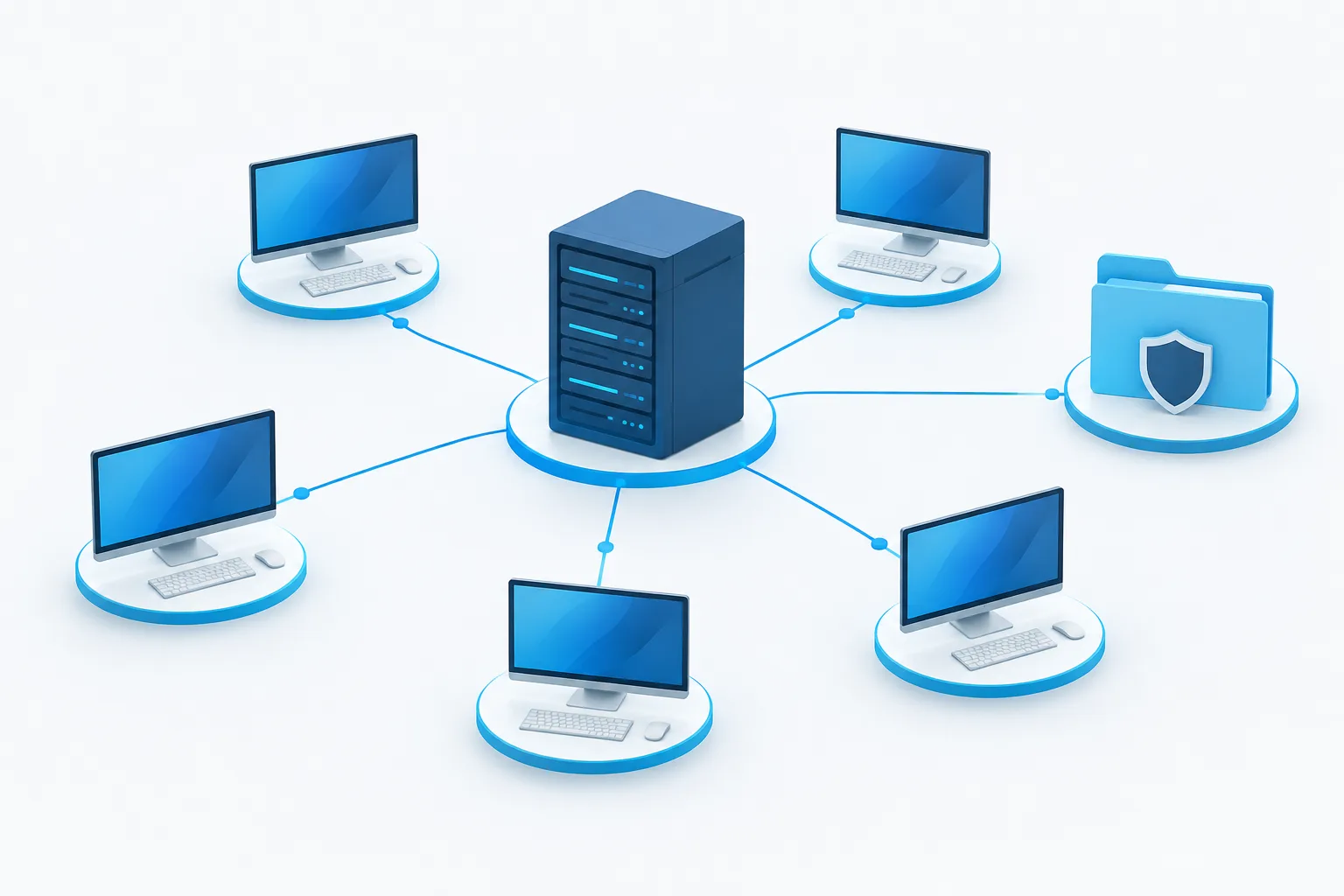
The host should be the computer where the company file is stored and where the QuickBooks Database Server Manager is set up to provide access. It is usually a designated server or host computer, not a staff workstation that happens to open QuickBooks.
On the host, open QuickBooks and look under File > Utilities. The host should have multi-user hosting enabled. On workstations, check that hosting is not enabled. If a workstation offers “Stop Hosting Multi-User Access,” that indicates hosting is currently enabled there. Turn it off only after confirming the correct host with your administrator.
A hosting setup issue can be easy to mistake for a company-file problem. For more background on organizing access around an accounting firm, see QuickBooks hosting support for accounting firms.
Check whether the workstation can reach the host
From an affected workstation, open File Explorer and try to browse to the company file’s shared folder using the host’s network name and share. If the folder does not open, or the file cannot be reached there, troubleshoot network access and permissions before changing QuickBooks settings.
Compare the path used by the workstation with the actual file location on the host. A drive letter may be mapped differently on different computers, so confirm that each workstation is using the intended shared folder. If other shared folders on the host also fail to open, the issue may be broader than QuickBooks.
Do not move the company file as a quick test. A move can change the path that Database Server Manager and workstations rely on. If the firm recently changed its network or storage setup, have the administrator verify that the location is supported for the QuickBooks version in use.
Check Database Server Manager and its services
On the host, find QuickBooks Database Server Manager and confirm it is installed for the version of QuickBooks being used. If the company-file folder has changed or the file is not appearing as expected, use its folder scan option to add or rescan the folder that contains the company file. Scan the specific folder rather than an entire drive.
An administrator can also check Windows Services for the QuickBooks database service and QBCFMonitorService. Names can vary by QuickBooks version. If a service is stopped, disabled, or repeatedly fails, note its status and ask the administrator to investigate before restarting it. Restarting services can interrupt people already using the company file.
Review permissions and firewall settings
The QuickBooks services and the users who need access must be able to reach the shared folder with appropriate read and write permissions. Ask an administrator to check both the folder’s sharing permissions and its Windows file-system permissions. Avoid broad access changes that give more people access than they need.
Firewall rules on the host or network can also block the connection. Have an IT administrator verify that the required QuickBooks programs and services are allowed for the installed version and network. Do not turn off the firewall as a test or open broad access to the network. QuickBooks versions can use different components, so use the correct vendor guidance for the firm’s version.
If you need a broader checklist for protecting the systems involved, see network security practices for accounting firms.
Understand the .ND file before changing anything
A QuickBooks .ND file is a network configuration file that sits alongside the company file and helps QuickBooks identify connection details. If it is missing or out of date, the host may not be advertising the company file as expected. That does not mean the company data file itself is damaged.
If the .ND file appears to be missing or the connection details seem stale, first confirm the company-file location and use Database Server Manager to rescan the correct folder. Do not casually delete, rename, or edit the .ND file. If you are unsure what it contains or how it should be rebuilt, ask an administrator or QuickBooks support to guide the repair.
Protect the company file before deeper repairs
Before attempting file repair, hosting changes, or other disruptive troubleshooting, confirm that a current backup exists and that users are out of the company file. Keep a note of the original file location and any settings changed so they can be reviewed or restored if needed.
Pause and involve an IT administrator if the next step requires changing firewall rules, Windows services, file permissions, or network configuration. The same applies if the file is stored on a device or hosting arrangement that has not been confirmed as supported for your QuickBooks version. Avoid repeating broad fixes when you do not know which setting they changed.
Frequently asked questions
Why won’t QuickBooks Desktop connect in multi-user mode?
Common areas to investigate include an incorrect host, a workstation that cannot reach the shared folder, Database Server Manager or its services, folder permissions, and firewall rules. Check whether one workstation or all workstations are affected to narrow the search.
What do H101, H202, H303, and H505 mean?
These codes are associated with multi-user hosting or connection issues. They are useful clues, but the right fix depends on the host setup, network path, and which computers are affected.
Which computer should host the company file?
Use the designated computer where the company file is stored and the QuickBooks database service is set up. Confirm the setup with your administrator rather than enabling hosting on a workstation as a workaround.
Should hosting be enabled on workstations as well as the host?
In a typical setup, the designated host provides multi-user access and workstations do not host the file. If hosting is enabled on a workstation, confirm the configuration before turning it off.
Get help before a small issue becomes a larger interruption
Work through the checks in order: identify the affected computers, confirm the host, test access to the shared folder, and then review QuickBooks services, permissions, firewall rules, and the .ND file. If the issue remains or the next step involves server-wide changes, contact an IT professional. Zevonix provides IT support for accounting firms; call (904) 658-0777 to discuss the problem.