
To test tax software updates before rollout, start with a controlled pilot that reflects how your firm actually works. Confirm the update’s requirements, prepare a protected test environment, check the connected applications and tasks staff rely on, then expand deployment only after a named decision-maker reviews the results.
This process matters because tax preparation software is part of a larger workflow. It may depend on accounting software, shared files, document tools, printers, e-filing steps, and add-ons. An update that opens successfully can still interrupt work elsewhere. A deliberate pilot gives your firm a chance to find compatibility problems before they affect every workstation.
Prepare the update before installing it
Begin by reviewing the vendor’s release notes, installation instructions, and system requirements. Identify whether the update changes supported operating systems, integrations, file formats, or the way users access shared data. If your firm uses desktop software, confirm that the intended version is compatible with the workstations and server or hosting setup involved.
Record the current software versions and relevant workstation configurations. Note which staff roles use the application, which integrations are important, and whether the update includes a security fix that changes the rollout timeline. The NIST guide to enterprise patch management provides a framework for planning, testing, and deploying patches as part of an organized maintenance process.
Set expectations before the pilot begins. Choose a maintenance window, tell affected staff what may change, and identify who will decide whether the update is ready to expand. Agree on go/no-go criteria in advance. For example, the pilot should not proceed if a required workflow fails, an integration is unavailable, data cannot be accessed as expected, or the recovery path has not been confirmed.
Choose a representative pilot group
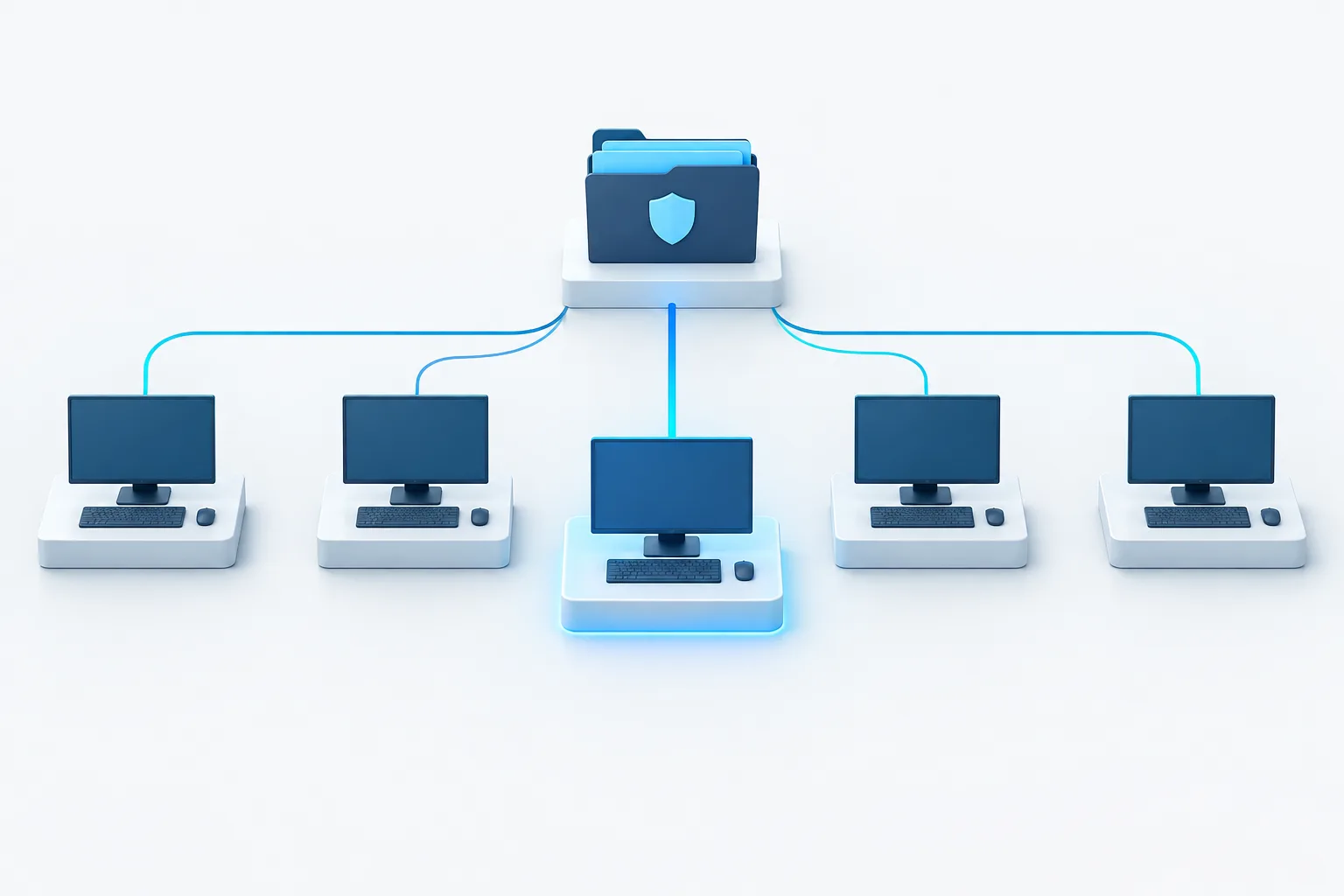
A useful pilot includes workstations and users that represent the firm’s actual setup, not just the newest or simplest computer. Include a mix of roles and configurations that use the software differently. Consider a workstation used for return preparation, one that handles review or filing tasks, and a setup that relies on shared files or connected accounting applications, if those reflect your environment.
Include the combinations that matter to your firm: different operating environments, remote and onsite access, multi-user workflows, and frequently used add-ons. You do not need to test every possible combination if some are not in use, but do not assume that a successful result on one workstation proves compatibility everywhere.
For a QuickBooks Desktop workflow, verify how the update behaves with the firm’s accounting software version, company-file access, and multi-user setup. Test on a protected copy of the relevant file where possible, and check compatibility before opening or converting files with an updated application. If multi-user access is part of the process, confirm that the expected users can reach the file and complete routine work. For related troubleshooting, see our guides to QuickBooks Desktop multi-user connection problems and tax software IT support for accounting firms.
Protect client information in the test environment
Use synthetic or appropriately de-identified data for ordinary functionality testing whenever it can represent the workflow. Do not assume that copying live client files into a test setup is acceptable. Tax information requires careful handling, and the test environment should follow the firm’s safeguards for access, storage, transmission, and disposal.
If a workflow cannot be validated without real information, involve the person responsible for the firm’s security and compliance practices before proceeding. Confirm that the environment is approved for that use and that access is limited to appropriate staff. The IRS’s configuration and patch management planning guidance can help firms consider patching within their broader technology safeguards.
Before changing production systems, confirm that backups are current and that the firm knows how to restore what it needs. Check the relevant application data, configuration details, and any files or settings that could be affected by the update. A backup is only useful as a recovery measure if the firm understands what it covers and how restoration would work.
Test the workflows staff depend on
During the pilot, test complete tasks rather than stopping after confirming that the software launches. Use a written checklist and record the outcome, the workstation tested, the software versions, and any error messages. Include the tasks that are important to your firm, such as:
- Opening the application, signing in, and accessing the expected files.
- Entering or reviewing representative information and checking calculations against expected results.
- Saving, closing, and reopening work without unexpected prompts or errors.
- Printing forms and reports, including any firm-specific output settings.
- Completing relevant e-file preparation and submission steps in the appropriate test or approved environment.
- Exchanging information with QuickBooks, Sage, document management tools, shared folders, and other integrations your workflow uses.
- Confirming that add-ons, permissions, multi-user access, and remote connections behave as expected.
For e-filing workflows, check whether the software version and setup are suitable for the firm’s intended use. The IRS explains how tax preparation software is approved for electronic filing. Follow the software provider’s instructions and the firm’s normal controls when validating e-file steps.
Keep a record of issues even if they appear minor. A slow response, missing printer option, unexpected file prompt, or changed integration behavior may reveal a problem that would become more disruptive when many staff members encounter it at once.
Set a go/no-go decision and recovery path
After testing, the decision owner should review the results against the criteria agreed on before the pilot. If a critical workflow fails, pause the broader rollout. Contact the software vendor or IT support, document the issue, and retest after a correction or revised plan. Do not treat a workaround as a resolution unless the affected users can complete their work safely and reliably.
Before expanding deployment, confirm the recovery path. Know how to stop further installations, restore affected files or settings, and return users to a supported working state if the update causes a serious problem. A rollback may mean restoring data or configuration, reinstalling a prior version, or following a vendor-directed recovery process. The right method depends on the software, so verify it before the update rather than improvising during an interruption.
Once the pilot is successful, expand in stages and check each group before moving on. Communicate the timing and any user actions required. Monitor for issues after deployment and keep the test notes with the firm’s technology records. For broader preparation around systems and staff needs, see accounting firm technology readiness for tax season.
How quickly should you deploy a security update?
Security updates deserve prompt attention, but the pilot should still be proportionate to the risk and the update’s impact. Coordinate with your IT support and software provider to prioritize the change, run focused compatibility checks, and deploy as soon as the firm can do so safely. Avoid leaving a known security issue unaddressed simply because a full feature-by-feature pilot is not practical; instead, use a narrower test that covers critical access, data, and workflow needs.
Frequently asked questions
Which workstations should be included in a pilot group?
Choose systems that represent the firm’s real software versions, user roles, access methods, integrations, and shared-file workflows. Include less common but business-critical setups if staff depend on them.
Should we test with live client data?
Prefer synthetic or appropriately de-identified data for routine testing. Use real client information only if the firm has confirmed that the test environment and handling process meet its safeguards for that information.
What should we back up before updating?
Identify the application data, configuration, and related files that could be affected. Confirm the backup is current and that the firm knows how to restore the needed items before starting.
What if the update breaks a critical workflow?
Pause the rollout, record the failure, and contact the software provider or IT support. Follow the recovery steps confirmed before deployment, then retest after the issue is addressed.
Make the rollout a controlled change
Testing an update is not just checking whether the program opens. It is confirming that the connected workflow, protected data, and recovery plan hold up in the way your firm needs. Start with a representative pilot, document the results, and expand only when the decision owner is comfortable with the evidence. Zevonix supports accounting firms with QuickBooks and tax software expertise, remote and onsite support, and priority response during tax season. To discuss a software update plan, contact Zevonix at (904) 658-0777.